Diberdayakan oleh Blogger.
Tampilkan postingan dengan label Tips Teknologi. Tampilkan semua postingan

Minggu, 22 Januari 2012

How to Work Internet

How to Work Internet - can not deny this in modern times the Internet is in need for every person, but not a few who know how it works.


A practical way the Internet works in a short time can send data in various formats of audio and visual data transmission rates are relatively very cheap compared with other data transmission medium, making its development is quite rapid in recent years.


Internet in general it has been widely recognized by society, but how exactly how the Internet network in terms of sending and transferring data in a short time? Here's a simple explanation:


A user's computer (client Computer) which intend to connect to the Internet, at first to be connected kesebuah Server. Given a server that regulate access and transmit data from and into the internet that requested by some client-server, so that client computers can access the website, chat, email, and so forth.


Liaison between Server and Client Computers to translate a variety of computer language called Protocol. If you access the address such as http:// ebuah which means it is hyper text transfer protocol and it's a sign you have been connected with computer networks.


Then get to know each of the millions of Client Computers in the Internet world, then each computer has an Internet Protocol (IP) respectively. IP address or often also called IP Address will provide information from which the packet originated and will be directed to where the data.


In addition there is also the IP Address of the most popular devices in the Internet world, the Web Browser. In order clinet computer you use to view information sent from the server, then the required internet browser software. Internet Browsers The most famous by far is Internet Explorer, Mozilla Firefox, Opera and others.

READ MORE - How to Work Internet

Principles Of Computer Work

Principles of computer work - Presentation Transcript


1. In principle COMPUTER WORKING PRINCIPLES TO WORK UNDER THE COMPUTER PROGRAMS / commands are executed BY COMPUTER USER, THEN OF SUCH ORDERS BY COMPUTER PROGRAM WILL FINALLY processed so MAKE AN INFORMATION AS A RESULT OF THE COMPUTER


2. PRNSIP WORKING THERE COMPUTER SECTION 3 PHASE entry (INPUT DEVICE) ORDER IS / progran THAT WE RUN THE PART OF EXPENDITURE (OUTPUT DEVICE) ARE A PART OF THE PROCESS COMPUTER Processor (DEVICE PROCESS) WHICH ARE INPUT processing data


3. PRINCIPLES OF COMPUTER WORK SCHEME LIKE BELOW OUTPUT INPUT Processing


4. INPUT DEVICE (DEVICE INPUT) INPUT DEVICE IS A TOOL TO ALL COMPUTER IS USED FOR ENTERING DATA INTO THE COMPUTER PROCESSING example: keyboard, mouse, joystick, CD-ROMs, hard disks, floppy disks, PROCESS SCANNER DEVICE (INPUT DEVICE) THAT IS PROCESS WITH THE DEVICE IS A TOOL USED FOR COMPUTER DATA MEMPROSESSEMUA the input INPUT THROUGH THE TOOLS THAT WILL THEN RESULT DISPLAYED TO EQUIPMENT processing output. For example: CPU (CENTRAL PROCESSING UNIT)


5. STORAGE IS WORKING PRINCIPLE CPU storage device CU (CONTROL UNIT) IS A TOOL FOR COMPUTER control the process from the entry of DATA / PROGRAM, then processed the resulting AN TO THE OUTPUT. ALU (arithmetic Logical Unit) IS A TOOL TO IMPLEMENT THE LOGIC - LOGIC AND COMPUTATION (arithmetic)


6. Magnitudes microprocessor RELATING TO COMPUTER BIT (BINARY DIGIT) CAN ONE BIT can be likened to SWITCHES ON AND OFF IS THE LEAST OF NIT STORAGE PLACE IS IN THE COMPUTER SYSTEM magnitudes BYTE FROM BIT BIGGER. 1 BYTE = 8 BIT. Accommodate 1 EACH BYTE CHARACTER. EXAMPLE: COMPUTER HAVE WORDS 8 LETTERS / CHARACTERS, SO REQUIRE 8 BYTE MEMORY. 1 KB (Kilobyte) = 1024 bytes 1 MB (Mega Byte) = 1024 x 1024 (= 1,048,576 bytes) STORAGE IS A COMPONENT as data storage TEMPORARY OR TERMS ARE COMPUTER MEMORY. STORAGE PLACE IN PARTICULAR BY CHIP-CHIP TO DO IS TO RAM AND ROM. ROM IS A READ ONLY MEMORY: PLACE PROGRAM PERMANENDAN DIGITAL INFORMATION SUBMITTED TO THE CHIP INTEGRATED CIRCUIT (IC), WHEN ON COMPUTER, PROGRAM-2 STORED IN THE ROM ON SOON, SO PROGRAM / INFORMATION ALTHOUGH NOT LOST IN ROM computer shuts down. HY CAN READ IN NATURE AND NOT BE ADDED.


7. RAM (Random Access Memory) PROCESS IS A PLACE FOR ANY KIND OF WORK, WHILE THESE PROPERTIES storage DIE SO IF YOUR COMPUTER PROGRAMS OR INFORMATION IN THE RAM WILL BE LOST IF THE STORED PRIOR FIRST. EXAMPLE: IBM PC / XT HAVE A RAM 640 KB IBM PC / AT HAVE A RAM 1024 KB = 1 MB AND CAN BE DEVELOPED 2 MB and so on.


8. DEFINITION OUTPUT OUTPUT DEVICES ARE ALL COMPUTER EQUIPMENT ON OR USEFUL FOR FEATURING MENGELUARKA OF PROCESSING. For example: MONITOR, PRINTER, DISK DRIVES


9. MONITOR MONITOR CONSIST OF SEVERAL TYPES: 1. Monochrome WHICH CONSIST OF TWO COLOR BLACK WHITE. FEATURING ONLY (80x25), RESOLUTION 320x200 PIXEL 2. CGA (Color Graphics Adapter) 3 COLOR, WITH RESOLUTION 640X200 PIXEL 3. EGA (Enhanced Graphics Adapter) 16 COLOUR WITH RESOLUTION 640X350 PIXEL 4. VGA (VIDEO GRAPHIC ARRAY) MAKE BETTER THEN gamabr PLG 256 WARNARESOL USI 640X480 PIXEL 5. LCD (LIQUID CRYSTAL DISPLAY) USED ON SCREEN DISPLAY SPECIAL LABTOP


10. CONSIST OF TWO TYPES OF PRINTER: PRINTER DOT MATRIX PRINT MAKING LETTERS, FIGURES ARE STILL USING LESS PERFECT FOR NEEDLE knock PRINTER TO THE HEAD AND STILL LOOK spots LASER PRINTER AND IMAGES OF MAKING THE MOST GOOD, COULD CAUSE OF VARIOUS TYPES OF PRINTING A hard copy HURUFHASIL ONCE SMOOTH STANDARD PRINT 300 DPI (dots per inch)


11. INPUT / OUTPUT DEVICE EQUIPMENT WHICH SERVES AS A TOOL FOR IMPORTING AND MULTIPLE OUTPUT. For example: DISK DRIVE USEFUL TOOL TO READ AND SAVE DATA on the disk. CHANGING THE MODEM DEVICE DIGITAL SIGNAL FROM ANALOG SIGNAL INTO THE COMPUTER AND THEN BE SENT TO A TELEPHONE LINE ON PURPOSE TO COMPUTER NETWORK LAN SISEM oprasi AMONG CERTAIN LOCATION ON ONE COMPUTER, eg IN ONE-STORY BUILDING.


12. KOMPUTRE KOMOMPUTER ELEMENT ELEMENT PART OF DIVIDED INTO 3, namely: HARDWARE (HARDWARE) COMPUTER THAT IS ELEMENT PHYSICAL FORM OF EQUIPMENT SOFTWARE (PERANKAT SMOOTH) IS TO ADJUST THE FORM OF ORDER shingga HARDWARE COMPUTER USERS CAN DO DESIRE. Brainware MANUSI IS RUNNING THE COMPUTER.


13. COMPUTER BASED CLASSIFICATION issue with AT FACE: SINGLE PURPOSE: JUST CAN ARRANGE THINGS TO DO SPECIAL DUTY AND NOT THE OTHER. Example: TIMER COMPUTER INDUSTRY TEXTILE MACHINERY, MACHINERY INDUSTRY CAR, STEEL, ELECTRONIC. 2. MULTI-PURPOSE: TO MAKE VARIOUS OTHER PURPOSES, EDUCATIONAL, ACCOUNTING, TRADE, BANKING, LAB. For example: PERSONAL COMPUTER

READ MORE - Principles Of Computer Work

How Computers Work

Here trying to explain a little about how computers work, although not in detail but can give some idea of ​​an idea of ​​how the computer works.

The way computers work broadly divided into three groups, namely:

input
Process
output

Input, ie media that is used to enter data into the process, this medium such as Keyboard, Mouse, Recorder Tave, held camera, CAM and others.
Process, which is a tool used to memproces data from the input which will be issued to the system output. This proces Komputer.Media plays an important role in the system to process the whole system has become the usual we are familiar with the mainboard or often called a motherboard. where in the mainbord it's included in it is the CPU (Central Processing Unit), usually people call it the CPU is already in one package along with a box-shaped casing is complete in it. Actually the heart of all the data proces it lies at the core of who called the Processor, Processor Electronics is a component that has been programmed with the series of logic in it. example of a processor such as Pentium, Pentium 2, up to Pentium 4 and more popular nowadays Pentium Core 2 Duo or Core Duo.
Output, ie output media where the media is to present results from data proces, the media output is a Printer, Plotter, etc..

outline the working principle can be seen pd image below:


data that comes on the medium of digital data input is a binary number (ie numbers are depleted in the divide by two) where the numbers are only familiar with the numbers 0 and 1. data coming into the proces is a combination of the digits 0 and 1, in the form of 8 bits of data, or 16 bits or 32 bits as well, depending on the computer system used and the processor was thus 8 bits, 16 bits or 32 bits, BIT (Binary Digit ).

Hope can give a little extra knowledge, for readers.
READ MORE - How Computers Work

Tips for Choosing and Buying a New Laptop or Notebook

Here are Tips for Choosing and Buying a New Laptop or Notebook special for you all, If today you still lay on Laptop Or Notebook and eager to buy it there may be a good idea to consider the following factors: Functions, Features, Price, Brand, Design and ergonomisnya are several factors you should consider. There are still many other factors you should consider before you decide to buy a laptop. Well there are Tips for Choosing and Buying a New Laptop or Notebook Should you notice:


1.Fungsi


Processor is the brain of a laptop to do the computational work. Processor types most certainly affect the ability and memory size factor is also very important. Especially if using a Windows OS that voracious eating memory. We recommend that you first determine what will be used as your laptop later. jenis2 laptops based on the following functions:


► Ultra Portable: For those of you who are highly mobile, laptop-sized species is usually small and very thin and very lightweight, has a maximum 12-inch screen. The processor used is a power-efficient processors to be used as long as possible. such as the Intel Atom, Intel ULV or AMD Neo. Battery life for laptops of this type is very good, could reach more than 7 hours of operation without needing an electrical outlet. Of course, performance or capability computing is not a flagship feature of this type of laptop. Keep in mind, the laptop of this type are usually not equipped with an optical drive. Price range also varies from 3 million (intel atom) up to tens of millions (intel core 2 duo ULV)


► Portable: For normal daily use. Is the type of laptops most suitable for most people. This type of laptop is a laptop that dominate the market today. Medium-sized and has a screen between 12-15 inches. Price range varies depending on the brand and the processor and other peripherals, starting around 4 million, using the most expensive Intel Celeron up to about 10 million, using the Intel Core 2 Duo or AMD Phenom. Durability accounting standard battery between 3-5 hours


► Desktop Replacement: Intended for the gamers, graphic designers, or other pekerjaan2 that require performance above rata2. Laptop type usually large, heavy, and has a screen measuring over 15 inches. Characteristic of this type of laptop is there a separate VGA card, not integrated. is to support the graphics capabilities that are needed by the laptop of this type. Processors used only top-class processor like intel core 2 duo or intel core 2 quad, thus making its prices become very expensive. This type of laptop price range starting from 8 millions to tens of millions of dollars.


2.Merek


Brand selection is very important. In khasus Netbook, local brand price ranges 2.5 million (3 cell battery) compared with the brands Acer / Samsung for $ 3 million (6 cell battery lasting served until 6-8 hours). Well-known brands such as Toshiba, Acer, Sony, Samsung, Dell, HP and others usually have a better assembly quality dibandingakan local assemblies. Also service centers are evenly distributed throughout Indonesia, or at least who have the service center nearest you. It's important for you who live outside kota2 like Jakarta or Surabaya, if one day there are problems or damage to your laptop.


3. Operating System


Most laptops sold today, most include Microsoft Windows as default OS. It is actually very detrimental to consumers. You as the consumer has no choice other than the OS. Laptops are generally the same bundling windows the difference in price range of 300-500 thousand compared with no OS. Anyway if purchasing the same bundling Windows normally partition a hard disk partition cuman wrote. If the data subject to dizziness installnya virus.


◄ ► Additional tips for those of you who really lay it or not ngeh ato do not understand at all about the laptop or notebook:


► Before buying a laptop or a cheap electronic products, should find out the current market price of this product. please find information by browsing on the internet. Usually the price in your city will not vary much with the price on the internet, it could also be cheaper.


► Encourage your friend who really understands about the laptop. Of course this is to help you in choosing and buying a good laptop that suits your desires and funds, not asikkan if the price of laptop bags and cheap but bad quality? Good things and quality yet cheap. :)


► To find a cheaper laptop usually when there are computer fairs / Laptops, prices are usually less expensive computer exhibition. However this does not guarantee that the price is cheaper fairs as you wish. However, you may be reference what price range you want a laptop products. Which stores are cheaper and appropriate the funds you:)


► It Last tips Try to Bid / negotiable price , And ask in detail about the warranty of the product that you buy Laptops, as well as the presence or absence of selling Full service in your city for laptop brand you buy, is to facilitate you if one day the laptop or Notebook you have any problems.


Those are some Tips for Choosing and Buying a New Laptop or Notebook from me.
READ MORE - Tips for Choosing and Buying a New Laptop or Notebook

How to Fix Your Own Laptop or Notebook you can do easily at home

How to Fix Your Own Laptop or Notebook you can do easily at home, without having to take ketukang service, provided that you know or know the symptoms and damage to your laptop or notebook, but if the damage is not too severe, then you can try to fix it yourself, or at least know where the damage. if you fail to fix it yourself, then you can take him ketukang service. and here I'll share a little about how to fix the laptop yourself anyway?. and this perhaps you can use as reference material if a laptop or notebook when your pet will experience problems like this.


The first is yng By analyzing existing symptoms and problems accurately. For example, some people will rush and buy a new battery immediately when the assumptions were faulty. It could be just a matter of a bad cable or connector on the power cord, whereas it can be fixed with a little soldering or insulation. Let's look together ....


Similarly, if the LCD screen off, it could be a mainboard or video adapter failure, a bad inverter or lcd fluorescent lamps burning. LCDs that need to be replaced, usually due to a physical crack in the glass or a block of dead pixels. If the CD or DVD drive is not working anymore, make sure you've tried the option to try before replacing the drive cleaning kit, and always check the connections before removing the old drive. Adalagi who would identify themselves as damage to the hard drive is louder or from time to time, battery life decreases.


Problems Power / Power failure


The troubleshooting process always starts with identifying what works. If the problems associated with power, (the battery is one of the causes of the laptop will not turn on) the first step is to make sure power to the laptop .. terkontribusi This means checking that the battery LED on the transformer on, and if not (or do not have an LED), make sure the ac adapter is plugged into an electrical outlet that good .. You can check that by unplugging the ac adapter and just plugging in a lamp or can memeriksana with current testing tools.


The next question is whether or not there is a small LED status lights on the laptop with the power plugged in.. Even the oldest models usually have a power status light is good .. If you have positive power status and the notebook will not turn on, the next check is the battery. Some notebook models will not operate without a battery is installed properly, find out on the internet if your laptop models will operate with the battery dead or missing. . If the battery is not an issue and the laptop still does not turn on the power of good status, it could be a problem with power regulator, or more likely a power regulation (ic power component) or the mainboard. Addressing regulatory issues or motherboard requires test equipment or spare board to swap, and is beyond the scope of this article. (We will discuss this in more detail in a portion other sessions)


There is very little difference between troubleshooting a Dell Laptop, Toshiba Satellite, Sony Vaio, IBM Thinkpad, HP Pavilion (and Compaq) or even the Apple Powerbook or iBook. . The basic design of all laptops are the same, although one model uses an Intel CPU, the other existing AMD PowerPC and Transmeta also low. A technician troubleshooting Toshiba laptops may prefer to start with the battery, as they are notoriously weak, such as problems of HP and Compaq notebooks often begins with the RAM. However, not all models can have a marked weakness in the same issue. not follow a logical process of elimination. Just because one model of Dell tends to blue blotches on the screen when a certain age that Dell notebooks continue memproksi with the same problem.


IBM and Sony and Apple laptops are generally viewed as higher quality than other popular brands, but they all experience similar problems due to overheating, wear, and occasionally run a bad component. The battery is a special subset of power problems that are happening. The older NiCd batteries were particularly susceptible to problems. If it is not perfect in charging, the battery cells begin to record the previous level as the new maximum level, and some individual cells may even reverse. Ni-MH (Nickel Metal Hydride Battery) which replaced NiCd (Nickel Cadmium) for standard models are somewhat better, but they can not fight bad or poor charging control circuit controls the software .. All laptop batteries, whatever the form, consisting of a number of low voltage cells connected in parallel or in series to achieve the required operating voltage.
Some older notebooks require you mengsiklus battery continually, only works on AC power as long as it takes to recharge the battery.


Many new models must be fully charged the batteries about once a week, but otherwise do not worry leave it plugged in a long time, and the latest design no matter what you do for a laptop really get a charge on the battery for a reasonable percentage of the time. If you think your battery runs down too quickly, make sure you have enabled aggressive power saving mode in the software (usually accessed through Control Panel or icons producers) which dim the display, slow CPU, and let the hard drive spin down when not in use. Also, keep in mind that the level of the estimated remaining battery resistance that causes an alarm on the screen can be set by the user, and if your default settings are very conservative (between 10% and 20%), you may want to experiment with a lower level (between 3% and 5%) that will still give you time to save your work and turn off the laptop before going into hibernation.


Failure Video


The first thing to check out the video problem, as described above. If you can always hear the laptop fan when you turn on the laptop and now you can not hear it does not matter vga, power or mainboard is the problem ..


The next troubleshooting step is to connect an external monitor with standard VGA connectors, whether CRT or LCD. If it still does not turn on your notebook to an external monitor, it's very likely that one of the motherboard components or internal video adapter (if it's not part of the mainboard) has been damaged. Possible damage to the motherboard components on the above analysis is Vga pa ... ... ic epromer paprocesor Mboard chips ... .. power modules ... power ic component: if the lead does not turn at all.


If the external monitor works fine, some problems occur on a laptop video subsystem, which usually contained entirely on the screen / lid assembly (flif). Or one bundle cable / lcd cable (video signal or power) which operates through a hinge for the video subsystem has failed, except for problems clearly on Lcd Tubes, (cracked screen, fade in the corner, a faint image, bad pixels). For your LCD replacement still have to open the main part of the laptop to check the connection. The easiest problem to identify perasalahan clearly is (physical damage) cracked LCD, Replacing the LCD is almost the same on most notebooks.


If you seem to light up the screen brightness or sometimes bright and sometimes almost fading (looming) or completely dark, (do not be fooled by the power saver mode), then you probably have a backlight or inverter problem .. Between the two, the inverter several times more likely to be problematic, serves as a solid ballast in fluorescent lamps modern. The backlight itself is a CCFL (Cold Cathode Fluorescent Lamp) to be a very long time for damaged / broken, while a whole generation of inverter is the same on some laptop models, you can easily find a replacement spare parts, whether original or compatible. (Method replacement inverter we discussed in another session).


Problems Fan (system cooler)


Common problem often faced is a hot issue, however the main enemy adfalah heat from the laptop, almost 75% who faced trouble is caused by excess heat. Especially in the casing of the laptop is almost no empty space is filled with all the components. The problem most of the cooler system is the blockage of heat dissipation holes on the heatsink (dust) which causes the heat which would have been paid back bounced into the laptop, so that the temperature within a very narrow space to grow panas.Hal this can cause over heating in the VGA chip, chip and processor is other motherboard components.


Problems to the fan (fan) is characterized by the sound of a noisy laptop, indicating fan or fan bearing worn off, which can harm your motherboard component.Sebaiknya not wait until there is heat damage (over-heat) to replace the fan.


Port and Power Connectors


Laptops are sometimes plagued by internal problems of the physical connector, such as a modem or network port seems detached in this case, making it difficult to get a good connection, or solder the power connector is connected with a period (induction) .. The only way to fix this problem is to open the casing of the laptop, determine what has been damaged, and do our best to restore it to original condition, not just mengkludgingnya.


Kludging problem with anything in the notebook has a tolerance that is so tight that your kludge might fail after you install the casing back. When performing soldering on board laptop, use the iron tip is smooth and not too hot do not take risks with hot solder can damage sircuit tinggi.hal on PCB (circuit board Board) Use a decent solder sucker to quickly clean the rest of the remaining tin solder. and if you feel doing it too lama.sebaiknya paused, and let cool before trying again.
READ MORE - How to Fix Your Own Laptop or Notebook you can do easily at home

How to Repair Windows 7 Seven With Easy for your laptop or your computer


How to Repair Windows 7 Seven With Easy for your laptop or your computer is very easy,and you can do yourself even if you do not quite understand about these windows Os. andyou only need a CD / DVD blank to be able to repair your windows 7 which is currentlyexperiencing problems. ok we immediately wrote to the guide How to Repair Windows 7Seven By following easy.

Step - steps should you follow is as follows:

The initial step please ► Click Start, then type in the system repair disc ► click Create aSyetem Repair Disc.


1. It will exit windows Create a System Repair Disc. Select the media disc will be used.


2. Then Insert a blank CDs into the DVD / CD RW and proceed by clicking the Create button disc.


3. When finished, remove the CDs that you created from DVD / CD RW, well now you also have a CD that can be used as a repair of Windows 7 on a computer disc or your laptop. well now that so the question is how to use the repair disc has seven windows that you made ​​earlier?


Here's how to use cd repair windows 7 is:


1. Booting your computer or notebook using the CDs that you created. and Select the Windows Setup [EMS Enabled] to get into the menu system repair.


2. After the boot process is complete, you can access the System Recovery Options and restore system image that you created earlier.


3. You can now choose the type recovey to be run to restore the operating system Windows 7 seven on your laptop or PC in accordance with the conditions of system damage that occurs. and If you want to use the system image that has been made​​, click system recovery image and follow the next steps in accordance with the instructions.


So little tutorial on How to Repair Windows 7 Seven With Easy. and hopefully a little help of you who are confused to repair windows 7 is YOUR ERROR. S E C I A N
READ MORE - How to Repair Windows 7 Seven With Easy for your laptop or your computer

How to Speed ​​up Your Pc Computer Performance

How to Speed ​​up Your Pc Computer Performance or the experience 3L (slow, lemot, LETOI) because now it can no longer deny that the computer is an object that can perform these kinds of activities that can facilitate, assist our work. and perhaps now the computer is one thing that must be owned by every person, as a result of Age and technological developments that are so rapidly in the modern era it is today. But what would happen If the computer or PC that you have Experiencing 3 L, surely you will be upset, angry ndongkol or not? Munkin With a few tips on How to Speed ​​up Your Pc Computer Performance or hopefully can solve computer problems that are experiencing above 3L. Okay then, Here are the steps you should do:


1. Minimize boot time


A. Location Booting
By default, usually the computer will check the floppy first. Change by going into the BIOS by pressing Del after calculations performed memory. Then in Device FirtsBoot choose the option where you put the disk operating system. For example "hard disk" In this way, the computer will not take any more time looking for the location of the boot, but directly to the hard disk where the operating system is stored.


B. Disable unused components
All the devices installed on the computer will take a boot. Therefore subtract padaMy computer right click / properties / hardware and then click Device Manager, then select the components that are no longer used by pililih Right click and disable.


C. Decrease Font
The number of fonts also affect the boot process. Use a font that is needed wrote. Let me not be lost before removing fonts you can save by making its own folder, if a time of need you can return again. How to delete fonts, go control panel, select the font and discard unneeded.


D. Eliminate Loading Screen
By eliminating the loading layer, you can also save a little time booting. The way the menu select Run on the Start menu, then type msconfig, press Ok. After that the option / NOGUIBOOT give a check mark. The alterations are not screen displays the windows logo on the boot process, only a black screen.


E. Reduce Time After Booting
Finishes booting, the computer no network recognition process. This takes time, if you wanted to use the computer and the computer is not connected to the network, then the way is to turn off this feature by going My Computer, select manage. Then expan Service and Application. On the list of services, double-click Workstation. Then in the dropdown box Star Up type select Disable.


2. Turn off / disable index services
Indexing Services is a small program but using a fairly large computer memory. Sometimes it can disturb the computer becomes more noisy or reads in disk access. Indexing Services is a function to update the list of computer files, in order to speed up PC performance with a system of registration index file. If you do not need a file search too often, can be turned off Indexing Services: Go to Start, Click Settings, Click Control Panel, double-click Add / Remove Programs, Click the Add / Remove Window Components, Uncheck the Indexing services, Click Next


Optimism 3 display settings
By lowering the level of the image. Windows with a cool desktop look really attractive. But too many pictures will waste system resources. To turn it off: go, Go to Start, Click Settings, Click Control Panel, Click System, Click Advanced, costume uncheck the following options (Show shadows under menus, Show shadows under mouse pointer, Show translucent selection rectangle, Use drop shadows for icons labels on the desktop, Use visual styles on windows and buttons, or it's up to you)


4. Speeding up the folder browser.
Every time you open a folder browser, it looks a little lag or delay. Karen Windows XP automatically searches for network files and printers everytime you open Windows Explorer. To fix you can shut down the facility by: Open My Computer, Click on the Tools menu, Click on Folder Options, Click on the View tab, Uncheck the Automatically search for network folders and printers check box, Click Apply, Click OK,


5. Turn off Unnecessary Service.
We recommend that the services are turned off do I get My Computer, select manage. Then expan Service and Application. Choose which is not required, then the Star Up dropdown box type select Disable.


6. Turn off start up
A. Sign in start menu: Start / All Programs / Startup delete all items that are not needed.
B. Sign in msconfig, how: Start / Run type msconfig, select the Startup tab, uncheck all unnecessary.
C. Clean regedit, how: Start / Run type regedit, go to HKEY_LOCAL_ MACHINE \ SOFTWARE \ Microsoft \ Windows \ CurrentVersion \ Run delete the entries that are not needed
D. Clean also
HKEY_CURRENT_USER \ Software \ Microsoft \ Windows \ CurrentVersion \ Run 7. Speeding up the menu display. Click the Start menu, select Run, type regedit, windows registry editor will appear, then look for HKEY_CURRENT_USER. click the [+] to view the submenu. then select control panel, then select desktop. (HKEY_CURRENT_USER [-]/= control panel [-] / desktop, click MenuShowDelay, and foxes valuenya with you like (the smaller the number the faster)


7. Note Visual Graphics
Effect of computer graphics visual effects we often burdensome performance of our PCs. Therefore we must choose between the importance of visual graphics / view from our computers or more concerned with the quality and performance of our PCs. How do I? Follow the steps as follows:
Right-click the icon My Computer -> Right Click -> Properties -> (Tab) Advance -> (Performance -> Settings) -> Visual Effects
Well there's no choice between the concerned image quality or performance of a PC computer, we just choose our priority. Or we can choose its own in the custom menu, just check / uncheck the option in accordance with our desires and our needs.


8. Avoid programs that Not Useful
Often we only install the program to meet the content of our computers. Yet a growing number of programs on our computer hard drive then it will be more full. And the more the contents of the hard drive is used then the computer will run slower anyway. Therefore we suggest that in order:


► Uninstall the programs that are not useful
How: Control Panel -> Add or Remove Programs
Well there would appear where the programs that we often use and which ones are not. Better for the program that we rarely use it on just delete from your PC computer.


► Perform Disk Cleanup
Disk Cleanup This will clean up old files that are no longer needed so it can save our hard drive space
How: My Computer -> C: (in accordance with what we want to clean the hard drive) -> Right Click -> Properties -> Disk Cleanup


► Periodic Defragment Hard Drive
Defragment the hard drive can also be cleaned from the data useless. So if we do this will add to defragment your hard drive free spac penyimpananan our hard drives.
How: My Computer -> C: (in accordance with what we want to clean the hard drive) -> Right Click -> Properties -> (tab) Tools -> Defragment Now


9. Doing Tweaking with Software
A lot of software available that can improve the performance of our computer. Among Tune Up Utilities, CCleaner, RegCleaner and much more. Tools-tools that we can also clean the registry of errors / error. We can look for software - software by way searhcing on google


10. Optimize Virtual Memory
How: My Computer -> Right Click -> Properties -> (Tab) Advance -> (Performance -> Settings) -> Advanced -> (Virtual Memory -> Change)
Well there is the custom of our size in accordance with the content there is in Reccomended


11. Start Up Turn off some features that are not useful
1. Start Menu RUN -> typed MSCONFIG -> OK / Enter -> Select the Start Up menu>> Remove all check on start up unless the Anti-virus program.
2. Click the service menu -> Uncheck the Automatic Updates After that, press Apply and OK


After the 11th to the above you do, now Restart your computer, and contrast the results before you make this change if you still Computer or Pc 3 L?, Demikan few Tips on How to Speed ​​up Your Computer Performance or Pc and hopefully can be useful for you all
READ MORE - How to Speed ​​up Your Pc Computer Performance

How to Fix Damaged Hard Drive As A Bad sectors


How to Fix Damaged Hard Drive As A Bad sectors - This problem may often occur among computer users, and worse still, not all users can complete masalh Because a corrupt hard drive Bad sectors, Not Detected or not read by the Bios is easy - easy to hard, depending on how severe the damage on the hard disk and also cause, at this time I will try to give a little ways to solve problems - problems that often occur on a damaged hard drive due to that I mentioned above. because the hard drive is the hardware that is very vital and important role in the computer or laptop. and without a hard drive is an operating system on a computer or laptop will not be able to walk. and personally I think as long as the hard drive it is not physically damaged ato Burned Components in mainbordnya then most likely we can save the data in it or even a hard drive can function normally again. Ok here's a few tips on How to Fix a corrupt hard drive KarenaBad sectors, Not Detected or not read by the Bios.

Bad Sector
To address this problem there are several ways and variations of the experiment, adapted to drive the brand and the number of bad sectors.
► For early handlers can use the command FORMAT C: / C (adjust the drive you want to format). / C is used for cluster mebersihkan who damaged.► Step two, if not managed can use the Disk Manager of each hard drive manufacturer.► If not successful you also can use the software HDDREG, MHDD, please download the software on the internet free.► If you have not managed to try the way Zero Low Level Format or File.► If you still can, you can do the cutting reply damaged hard disk sector, by way of dividing it and not use a damaged sector.

Detected in the BIOS but can not be used
Erosive damage to the hard drive detected in BIOS but can not be used, always appears an error message when the computer do the POST. This is usually caused from the hard disk firmware problem reply. For many of these symptoms occur in Maxtor brand hard drive series with the names of Gods. To fix it you can download the Firmware program from the hard drive brand website.

Hard drive not detected by BIOS
The damage caused benar2 Disk not detected by the BIOS and can not be used again.This is the hardest level in my opinion. Due to the repairs we need a little permutations electronic devices and components therein. Menganggulangi hard drive not detected by the BIOS many ways.
► Check the electrical current running into the hard drive► Replacing Hard Drive IC on mainboard► Open Cover Cover your hard disk and check the position of Head hard drive► How extreme yg yg damaged hard disk drive can be cannibalized by others who keruskan who are different, can be a way to replace maiboardnya or take his IC.
READ MORE - How to Fix Damaged Hard Drive As A Bad sectors

Jumat, 20 Januari 2012

Buying Tips Motherboard/Mainboard

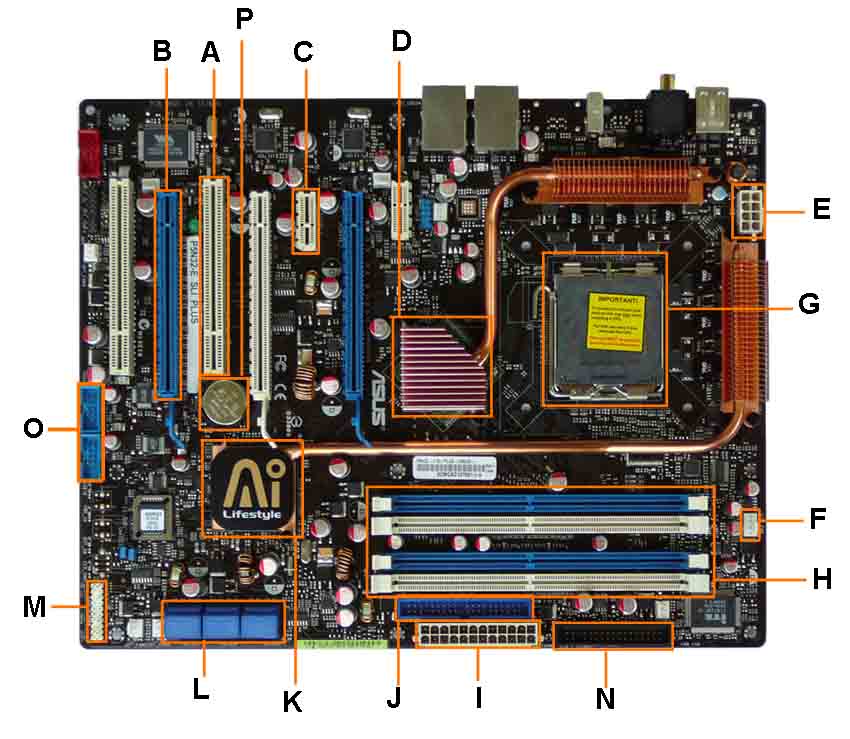
Buying Tips Motherboard/Mainboard- motherboard or mainboard is the most importantdevice in the computer. Because of the importance of this device, so named as "Mother".That is the main motherboard is a device that became the platform / basis of a PC. It can be said, a PC is actually built and has a spec according to the motherboard used. Alldevices & peripherals such as processors, RAM, Hard Drive, VGA card to the Mouse /Keyboard are all related and "plugged" on the motherboard.


Before deciding to buy a motherboard, it would be nice to know beforehand part 2 of the motherboard itself


Many brands are available in the market, choose according to need. Brand may also be considered given the quality is the main
READ MORE - Buying Tips Motherboard/Mainboard

Followers


Copyright © 2009 by Tips Trik

Template by Blogger Templates | Powered by Blogger